
XRDP brings the Remote Desktop protocol (RDP) to linux machines. One of the main drawbacks is that it does not support network layer authentication (NLA), therefore Windows won’t allow you to save the password and it does not allow you to copy and paste the password in the login screen.
Key Points
- XRDP does not support Network Level Authentication (NLA) by default, which prevents Windows from saving login passwords.
- You can achieve auto-login by creating a specialized .rdp shortcut file with an encrypted password string generated via PowerShell.
- The generated password string is encrypted using local system keys, making the .rdp file specific to the machine where it was created.
- MVPS provides unmanaged services, so support ensures the VPS is working and network is okay, but does not cover software configuration like XRDP.
- As an unmanaged service provider, we offer assistance only for infrastructure-level issues, not for tasks within the user’s operating system.
- These VPS products do not include dedicated CPU or guaranteed resources, as those are part of a different product category.
Thankfully, there is a solution which implies the creation of a .rdp file with the login credentials. This acts as a simple shortcut; one click, and you are directly logged into your remote Linux server.
How to encrypt your password for XRDP?
To start, you need to generate a secure string that Windows can use. Open a PowerShell terminal on your local machine:
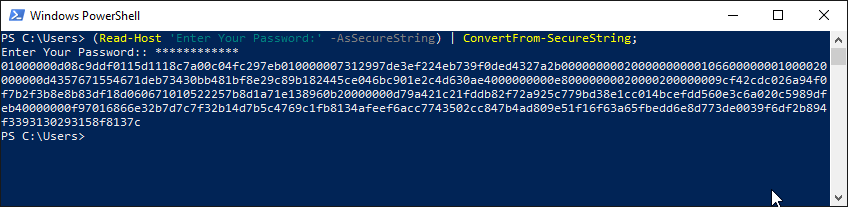
Run the following command in the powershell terminal:
(Read-Host 'Enter Your RDP Password:' -AsSecureString) | ConvertFrom-SecureString;You will be asked to enter your RDP password. Enter it and press Enter. The system will generate a long code – this is your encrypted password.
How to create the .rdp shortcut file?
Copy the generated code (the one just below your *****), open a notepad or any other text editor and complete it like this:
full address:s:SERVER-IPusername:s:SERVER-USERNAME password 51:b:GENERATED-PASSWORD
When completing the file, remember these details:
-
GENERATED-PASSWORD: The long encrypted string from PowerShell.
-
SERVER-USERNAME: The username for your session. For many setups, including Lubuntu RDP, this will be
root. -
SERVER-IP: Your server’s unique IP address.
For example, your file should look like this:
full address:s:123.123.132
username:s:root
password 51:b:01000000d08c9ddf011118c7a00c04…51f16f63a65fb6e8d7730039f6df2b894f3393130293158f8137c
Save the file as myserver.rdp. Now, double-clicking this file will connect you to your server immediately without any password prompts.
Security and Portability Limitations
It is important to note that this file will only work on the computer where it was generated. You cannot send it to someone else or copy it to another device, as the encryption is tied to your local system. You must generate a new file for each computer you use.
Last but not least, ensure you use a very strong password for your server. If you do not use SSH, disable it! Since these are unmanaged services, you are responsible for the configuration and security of your environment. We recommend creating a separate user for daily tasks, enabling sudo, and disabling root access.


