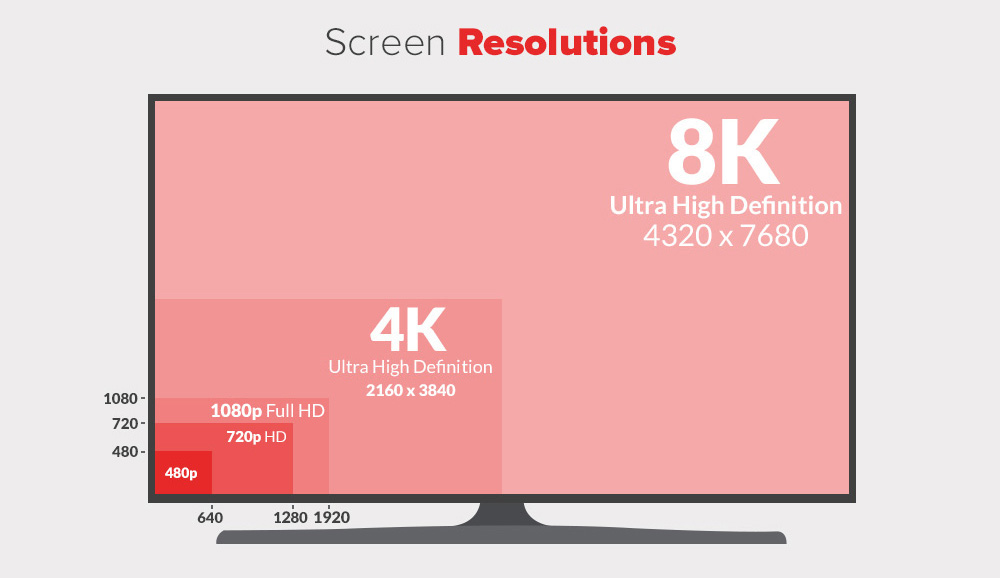
What do 720p, 1080p, 1440p, 2K, 4K, and 8K mean from a resolution perspective? Understanding these terms is key to choosing the right hardware for your needs. Traditionally, resolution is described by the number of pixels arranged horizontally and vertically on a monitor.
Key Points
- Resolution is defined by the total number of horizontal and vertical pixels on a display.
- The letters “p” and “i” stand for progressive and interlaced scanning methods.
- Common standards include HD (720p), Full HD (1080p), QHD (1440p), and Ultra HD (4K).
- Downsampling allows higher-resolution content to be viewed on lower-resolution screens.
Historically, available options were determined by the technical features of the GPU. IBM originally developed color monitor technology, evolving from CGA to EGA and eventually VGA. Regardless of the monitor’s technical specifications, users choose image options based on graphics card drivers and system defaults.
What is the difference between Progressive and Interlaced?
You may have seen resolutions described as 720p or 1080i. These letters indicate how the image is drawn on the monitor. The letter “p” stands for progressive, while the letter “i” means interlaced.
An interlaced screen displays odd pixel lines first, then even ones, whereas progressive scanning draws all lines in sequence. While interlaced images were common in early TVs and CRT monitors, modern displays use pixels so small they are difficult to see without a magnifying glass.
How to perform a screen resolution comparison?
When looking at a display resolution comparison, the numbers usually refer to the horizontal pixel lines on the screen. Higher numbers indicate a greater density of pixels, resulting in a sharper and more detailed image.
Here are the most common standards used today:
- 720p (1280 x 720): Commonly known as HD or “HD Ready”.
- 1080p (1920 x 1080): Known as FHD or “Full HD”, the standard for most content.
- 1440p (2560 x 1440): Known as QHD or Quad HD, often found on gaming monitors.
- 4K or 2160p (3840 x 2160): Also called UHD (Ultra HD), offering four times the pixels of 1080p.
- 8K or 4320p (7680 x 4320): A massive resolution providing 16 times the detail of a Full HD screen.
2K resolution (2048 x 1080) refers to screens with a horizontal resolution of approximately 2000 pixels. Although it is close to 1080p, it is considered a distinct professional standard.
Can you watch 4K video on a 1080p screen?
Yes! No matter what resolution your screen has, you can view almost any video on it. If the video has a higher resolution than your display, the device performs downsampling to match the screen’s capabilities.
Understanding Aspect Ratios and Pixel Sizes
Aspect ratio indicates the width of the image relative to its height. Depending on the display ratio, you can only use specific resolutions that fit those dimensions.
Common ratios include:
- 4:3: Traditional square-like displays (e.g., 1024 x 768).
- 16:10: Common in older laptops and professional monitors (e.g., 1920 x 1200).
- 16:9: The current widescreen standard for HD, 4K, and 8K content.
Choosing the right resolution comparison depends on your hardware’s performance. For example, while optimized RAM and DISK resources are vital for server performance, your local GPU determines how well these high resolutions are rendered on your desktop.


