
We, at MVPS, provide access to our ISO image library, which allows our customer to install operating systems which are not supported by our automated installs. However, there are much more operating systems out there which are not part of our library and for them, we have added the netboox.xyz solution.
Key Points
- MVPS provides access to the netboot.xyz ISO, allowing customers to install operating systems that are not available in the default automated install library.
- netboot.xyz enables network-based installation of a wide range of Linux, BSD, and utility environments directly from the VPS console.
- The setup process involves loading the netboot.xyz ISO, booting from the Virtual DVD, configuring network settings, and following the on-screen OS installer.
The developers of netboot.xyz have created a very nice pxe boot system which allows you to install almost any operating system over the network. You just boot the netboot.xyz.iso file, configure the network interface and the IP address, and then proceed to the installation of the operating system.
At the time of writing this article, netboot.xyz supported the following operating systems:
Operating Systems
| Name | Installer Kernel | Live OS |
|---|---|---|
| AlmaLinux | Yes | No |
| Alpine Linux | Yes | No |
| Anarchy Linux | Yes | No |
| Arch Linux | Yes | No |
| Backbox | No | Yes |
| BlackArch Linux | Yes | Yes |
| Bluestar Linux | No | Yes |
| Bodhi Linux | No | Yes |
| CentOS | Yes | No |
| CoreOS | Yes | No |
| Debian | Yes | Yes |
| Deepin | No | Yes |
| Devuan | Yes | No |
| Elementary OS | No | Yes |
| EndeavourOS | No | Yes |
| Fatdog64 | No | Yes |
| Fedora | Yes | Yes |
| Feren OS | Yes | No |
| Flatcar Linux | Yes | No |
| FreeBSD | Yes, disk image | No |
| FreeDOS | ISO – Memdisk | No |
| Garuda Linux | No | Yes |
| Gentoo | Yes | Yes |
| Harvester | Yes | No |
| hrmpf | No | Yes |
| IPFire | Yes | No |
| K3OS | Yes | Yes |
| Kali Linux | Yes | Yes |
| KDE Neon | No | Yes |
| Kodachi | No | Yes |
| Linux Lite | No | Yes |
| LXLE | No | Yes |
| Mageia | Yes | No |
| Manjaro | No | Yes |
| Mint | No | Yes |
| Microsoft Windows | User supplied media | No |
| MirOS | Yes | No |
| Nitrux | No | Yes |
| NixOS | Yes | No |
| OpenBSD | Yes | No |
| openEuler | Yes | No |
| OpenSUSE | Yes | No |
| Oracle Linux | Yes | Installer |
| Parrot Security | No | Yes |
| Peppermint | No | Yes |
| Pop OS | No | Yes |
| Proxmox VE | Yes | No |
| Q4OS | No | Yes |
| Raizo | No | Yes |
| RancherOS | Yes | No |
| Red Hat Enterprise Linux | User supplied media | No |
| Regolith | No | Yes |
| Rocky Linux | Yes | No |
| Scientific Linux | Yes | No |
| Septor | No | Yes |
| Slackware | Yes | No |
| SmartOS | Yes | No |
| SparkyLinux | No | Yes |
| Tails | No | Yes |
| Talos | Yes | No |
| Tiny Core Linux | Yes | Yes |
| Ubuntu | Yes | Yes |
| VMware | User supplied media | No |
| Voyager | No | Yes |
| VyOS | Yes | No |
| Zen Installer | Yes | No |
| Zorin OS | No | Yes |
Utilities
| Name | Type |
|---|---|
| 4MLinux | Kernel/Initrd |
| ALT Linux Rescue | ISO – Memdisk |
| BakAndImgCD | Kernel/Initrd |
| Boot Repair CD | LiveCD |
| Breakin | Kernel/Initrd |
| CAINE | LiveCD |
| Clonezilla | LiveCD |
| DBAN | Kernel |
| GParted | LiveCD |
| Grml | LiveCD |
| Kaspersky Rescue Disk | LiveCD |
| Memtest | Kernel |
| MemTest86 Free | USB Img |
| Redo Rescue | LiveCD |
| Rescatux | LiveCD |
| Rescuezilla | LiveCD |
| ShredOS | Kernel |
| Super Grub2 Disk | ISO – Memdisk |
| System Rescue | LiveCD |
| The Smallest Server Suite | Kernel/Initrd |
| Ultimate Boot CD | ISO – Memdisk |
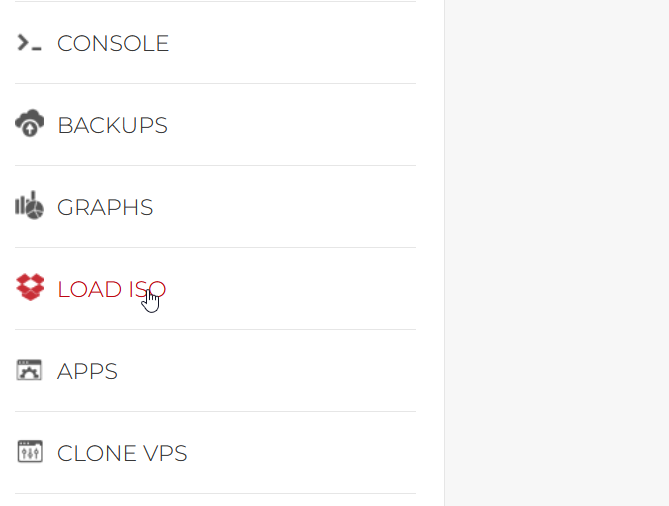
In order to use this system, on the left menu of the VPS page, click on Load ISO:
Select the netboot.xyz.iso image and click Load ISO from the bottom of the page.

Wait a few minutes until the ISO image is inserted, open the console then boot from the Virtual DVD by pressing ESC during the boot process and selecting CD/DVD.
Use the net0 interface by pressing enter (default).
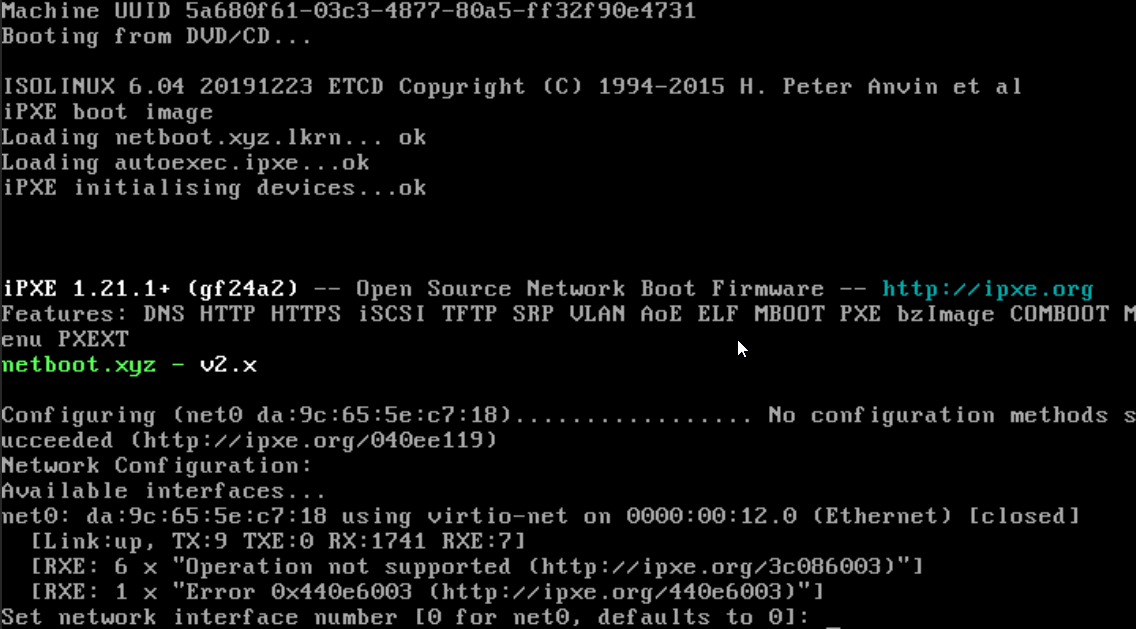
Add your server’s IP Address, netmask (255.255.255.0), gateway and a public dns server (ex: 8.8.8.8)

Select the type of OS you wish to install.
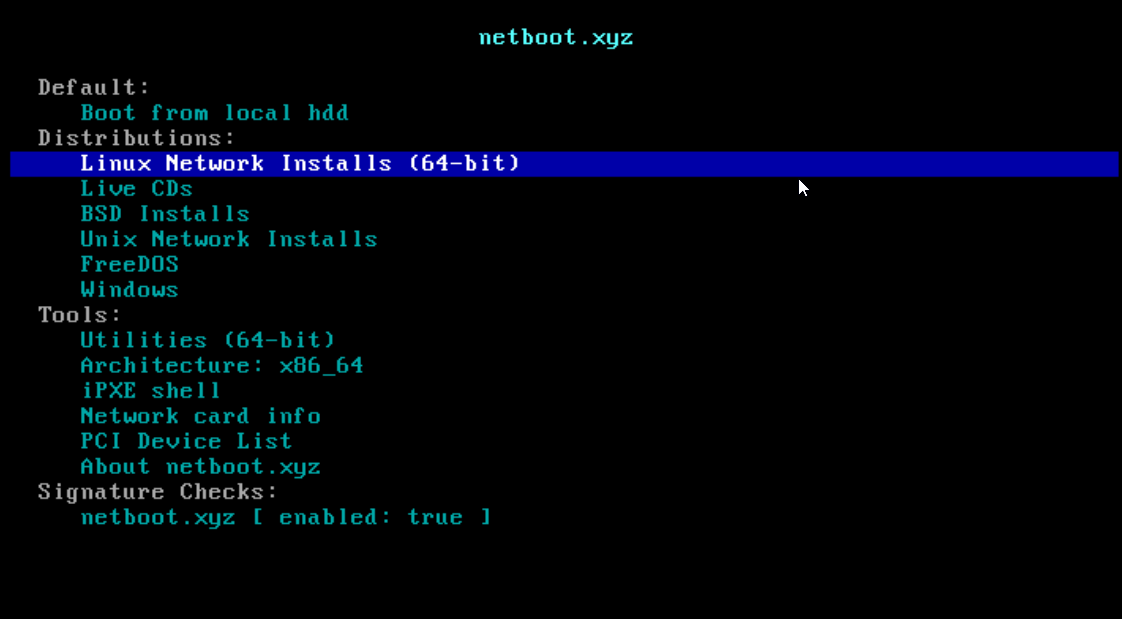
Follow the on-screen instructions and install the operating system of choice.
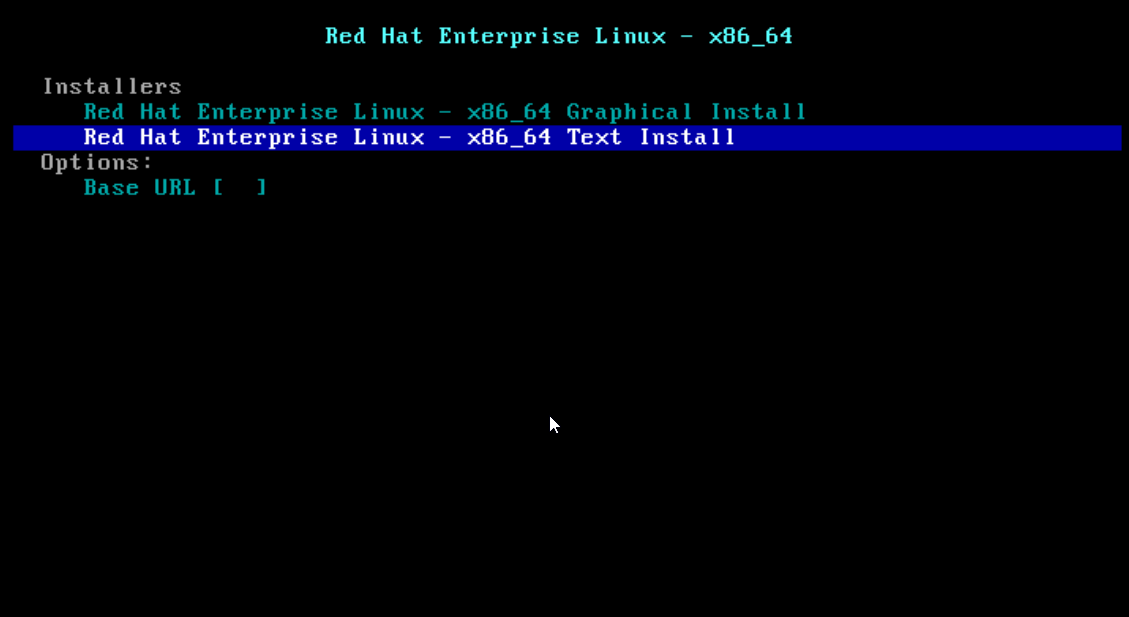
That’s mainly it. You can now install most operating systems on your VPS!


